

Quick start
This page takes you from an invitation email to watching Buddy change a real, running site. Each step links to the page that covers it in full.
1. Accept your invitation
Section titled “1. Accept your invitation”Site Buddy is invitation only. Someone in your organization (or the Site Buddy team, for a new organization) sends you an invitation by email. Open it, choose your name and a password, and press Join. You land on your list of sites.
The invitation is good for seven days. If it has run out, ask whoever sent it to press Send again.
2. Connect an AI provider
Section titled “2. Connect an AI provider”Buddy thinks with your organization’s own AI account, so its use is billed to you and its limits are yours: a ChatGPT subscription, or an API key from OpenAI, Anthropic, Google or xAI. Until one is connected, the chat tells you so and offers a button to connect one. Open AI providers in the sidebar and press Add provider. See AI providers.
If you were invited into an organization that is already set up, skip this step.
3. Create a site
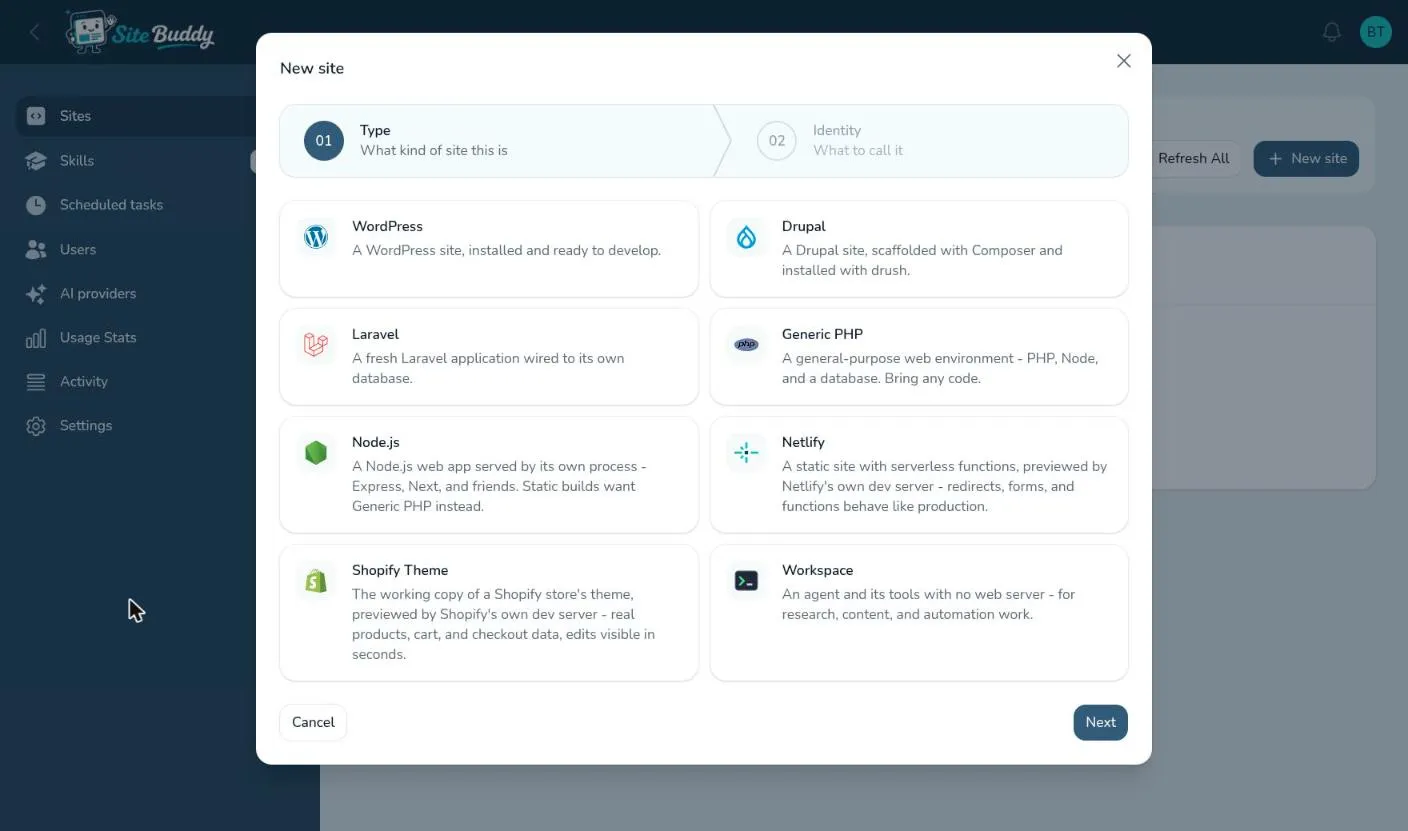
Section titled “3. Create a site”On the Sites page, press New site, pick what kind of site it is (WordPress, Shopify theme, Laravel and so on), give it a name, and press Submit. Site Buddy builds its environment while you watch; the workspace opens straight away and the chat unlocks when the site is ready. See creating a site.
4. Ask Buddy for something
Section titled “4. Ask Buddy for something”Type what you want in the chat, the way you would ask a colleague:
- “Give the homepage a hero section with our tagline and a Book a call button.”
- “Look through the site for broken links and fix what you can.”
- “Install a contact form plugin and put a form on the Contact page.”
Buddy shows each step as it works: the files it reads, the commands it runs, the pages it checks. See your first conversation.
5. See the result
Section titled “5. See the result”Press Open site at the top of the workspace to see the change on the site’s private preview address. To show it to someone outside your team, add their email address under the site’s Access settings; they get in with a one-time code. See previewing and the lock page.
Where to go next
Section titled “Where to go next”- Getting good results: how to ask so Buddy gets it right first time.
- Teaching Buddy about a site: your brand, tone and standing rules, remembered in every conversation.
- Skills and integrations: give Buddy know-how and access to your services.
- Team and roles: invite the people you work with.