

Integrations
An integration connects one of your services to a site: its analytics, its CRM, its file storage, its server. Once connected, Buddy can use it: pull last month’s traffic, update a contact, read a spreadsheet, check a server.
Your credentials stay in Site Buddy. Buddy never sees the password, key or token. Its requests pass through Site Buddy, which adds the credential on the way out.
Adding one
Section titled “Adding one”- Open the Integrations pane in the site’s workspace and go to Catalog.
- Find the service and press Add.
- Fill in its form. Most ask for an API key or token; services that sign in with Google take you to Google’s sign-in page and bring you back when you have approved access.
- Save. Site Buddy checks the connection straight away.
Every integration has an optional Agent usage notes field: anything Buddy should know about using it (“this is the client’s live store, read only”, “the main property is the one called Website 2024”).
The Integrations pane
Section titled “The Integrations pane”- Added: the integrations this site has, each with its status (Connected, Needs sign-in, Error, Verifying… or Draft) and the last error, if any. Click one to edit it; its menu can also reconnect, verify or delete it.
- Catalog: every kind of integration. A service a site can only have once shows Added once it is there.
What you can connect
Section titled “What you can connect”- Analytics and search: Google Analytics, Google Search Console, Google Tag Manager, Bing Webmaster Tools
- Advertising: Google Ads, Local Services Ads
- SEO tools: Ahrefs, Semrush, DataForSEO, Surfer
- Documents and storage: Google Drive, Google Docs, Google Sheets, Dropbox
- Commerce and CRM: Shopify API, Magento API, HighLevel CRM
- Code and servers: GitHub, SSH server, Remote WordPress
- Other: Pangram (AI-text detection), a headless browser, any REST API, and any MCP server
Something missing? A REST API or MCP server integration connects most services that offer an API.
A few worth knowing about
Section titled “A few worth knowing about”GitHub
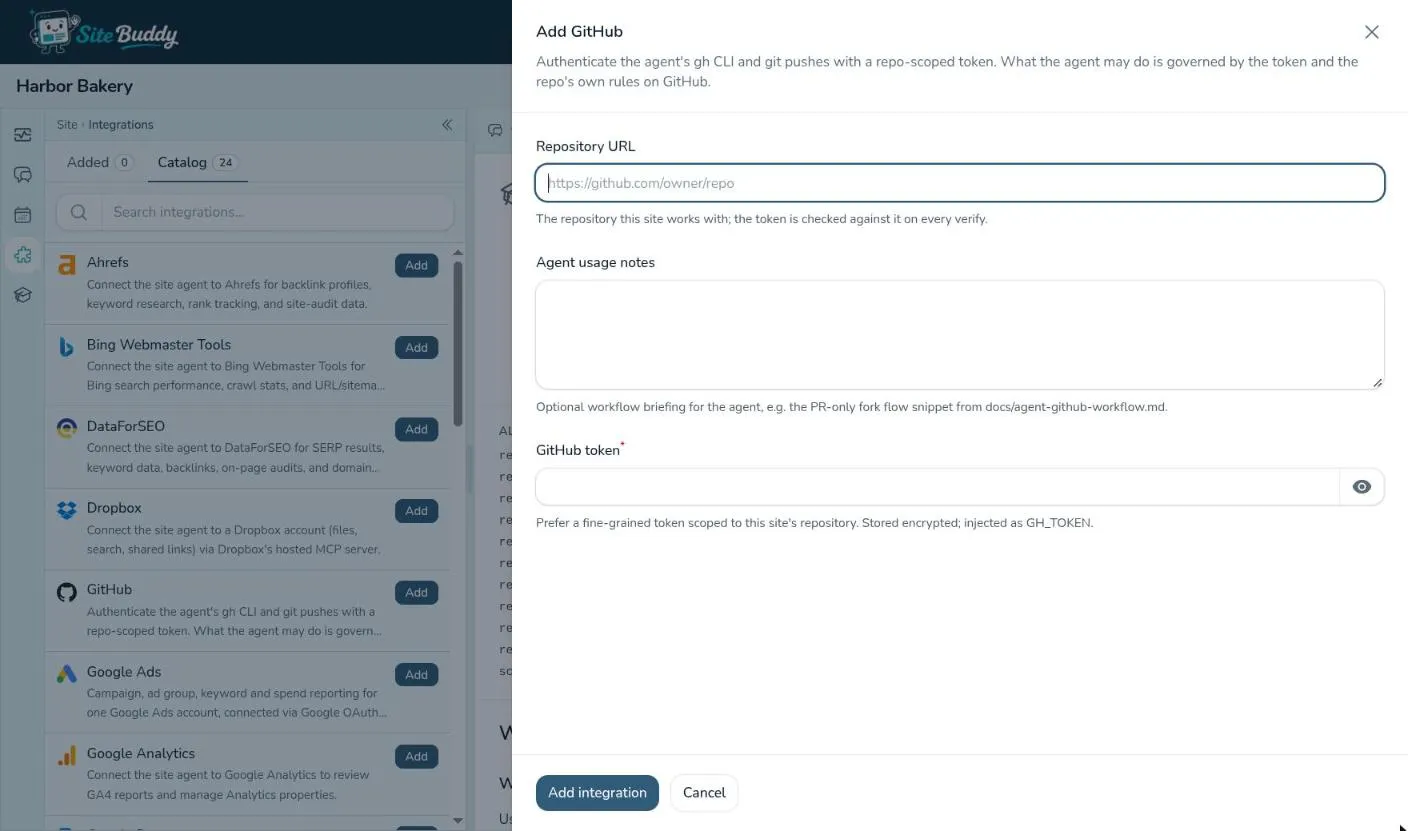
Section titled “GitHub”Give the Repository URL and a GitHub token (a fine-grained token limited to that one repository is best). Buddy can then clone the code, commit its work, and push it or open pull requests, depending on what the token allows. To review every change before it lands, protect your main branch on GitHub and ask Buddy to work through pull requests.
Headless browser
Section titled “Headless browser”Gives Buddy a real browser: it can open the site’s pages, click through them, and take screenshots, so it checks its work the way a visitor would see it, not just by reading code. Ask it for a screenshot when you want to see what it sees.
SSH server and Remote WordPress
Section titled “SSH server and Remote WordPress”Let Buddy reach a server or a live WordPress site outside Site Buddy: to check logs, compare settings, or deliver changes the way your team already does.
REST API and MCP server
Section titled “REST API and MCP server”Connect almost anything else. For a REST API you give its Base URL, how it expects the key (Auth header), the API token, and optionally a link to its documentation; for an MCP server, its address. Buddy learns the rest from the service itself, its documentation, or your usage notes.